Help: Update Internet Explorer Security to View PDFs

You cannot view or print the PDF file of your paycheck or Form W-2 if:

Step-by-Step Instructions

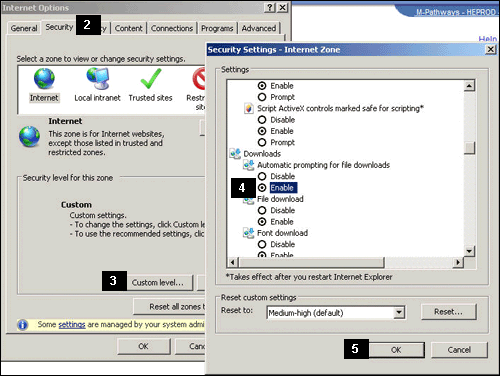
Enable automatic prompting for file downloads:

Security - Custom Level


  1. Select Internet Options from the Tools menu (not illustrated here).

  2. Click the Security tab.

  3. Click the Custom level button.

  4. Scroll down to the Downloads section and select Enable under Automatic prompting for file downloads.

  5. Click the OK button.


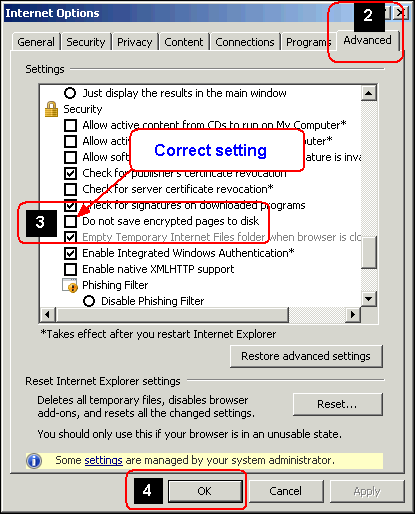
Do not save encrypted pages to disc:

Internet Options - Advanced tab


  1. Select Internet Options from the Tools menu (not illustrated here).

  2. Click the Advanced tab.

  3. Scroll down to the Security Settings and if necessary, uncheck Do not save encrypted pages to disk.

  4. Click OK on the Internet Options dialog box to save and close.


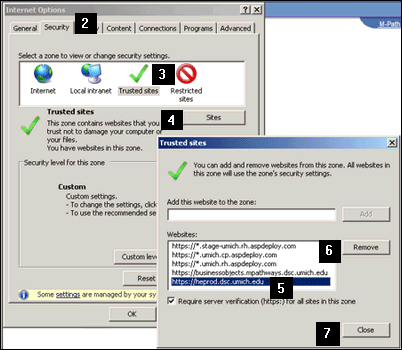
Remove Employee Business from Trusted sites:

Internet Options - Trusted Sites


  1. Select Internet Options from the Tools menu (not illustrated here).

  2. Click the Security tab.

  3. Click the Trusted sites icon.

  4. Click the Sites button.

  5. From the Websites listing, select https://heprod.dsc.umich.edu.

  6. Click the Remove button.

  7. Click the Close button on the Trusted sites dialog box.

Related Topics

Help: View Paycheck

Help: View W-2 Forms


Contact Information

Questions? Call the Shared Services Center.

Call 5-2000 from the Ann Arbor Campus, 734-615-2000 from the local Ann Arbor area, or 1-866-647-7657 for toll-free long distance.  The Shared Services Center is open Monday - Friday 8:00-5:00.